
Choice Craft logo
The Learning Edition
Independent Printer Knowledge / 01
Learn / Understand / Explore

A clearer way to understand your printer.

Everyday printing comes with questions. Choice Craft brings together practical, easy-to-follow articles covering printer setup, wireless connections, driver basics and common printing issues.

Explore independent educational information written to make unfamiliar printer terms and everyday technical concepts easier to understand.

Independent educational resource

Informational articles only. No paid repairs, phone support, downloads or remote access.

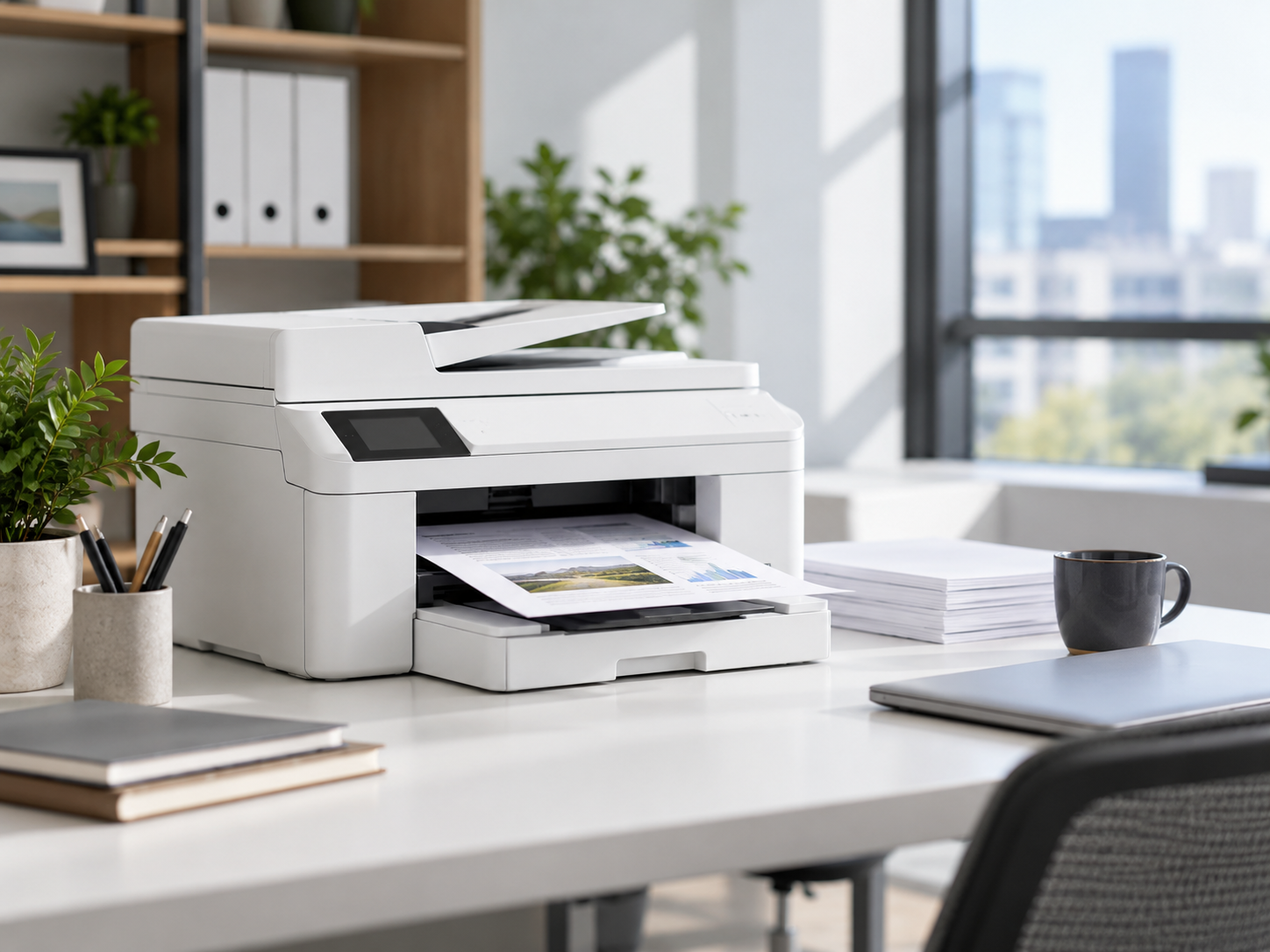
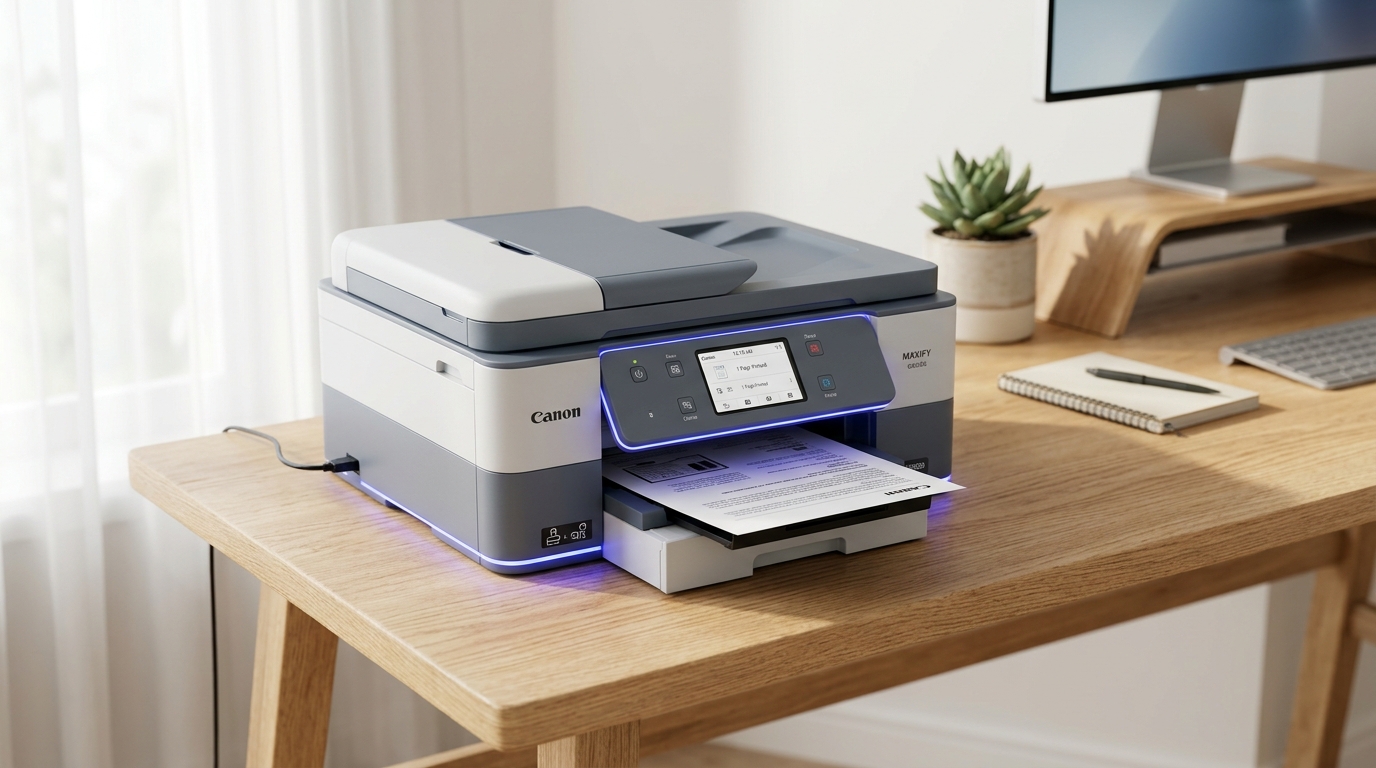
Modern printer workspace for educational learning
Printer Learning Hub Educational Reference
Featured Focus

Printing, made simpler.

Learn the essentials behind printer connections, device settings and day-to-day printing.

02 / EXPLORE THE LIBRARY

Knowledge for everyday printing.

Four areas of practical printer knowledge, organized to help you find useful information without unnecessary complexity.

01 — 04

Clear Explanations

Understand printer status messages, offline notifications, common error codes and print queue terminology.
02 — 04

Setup & Connectivity

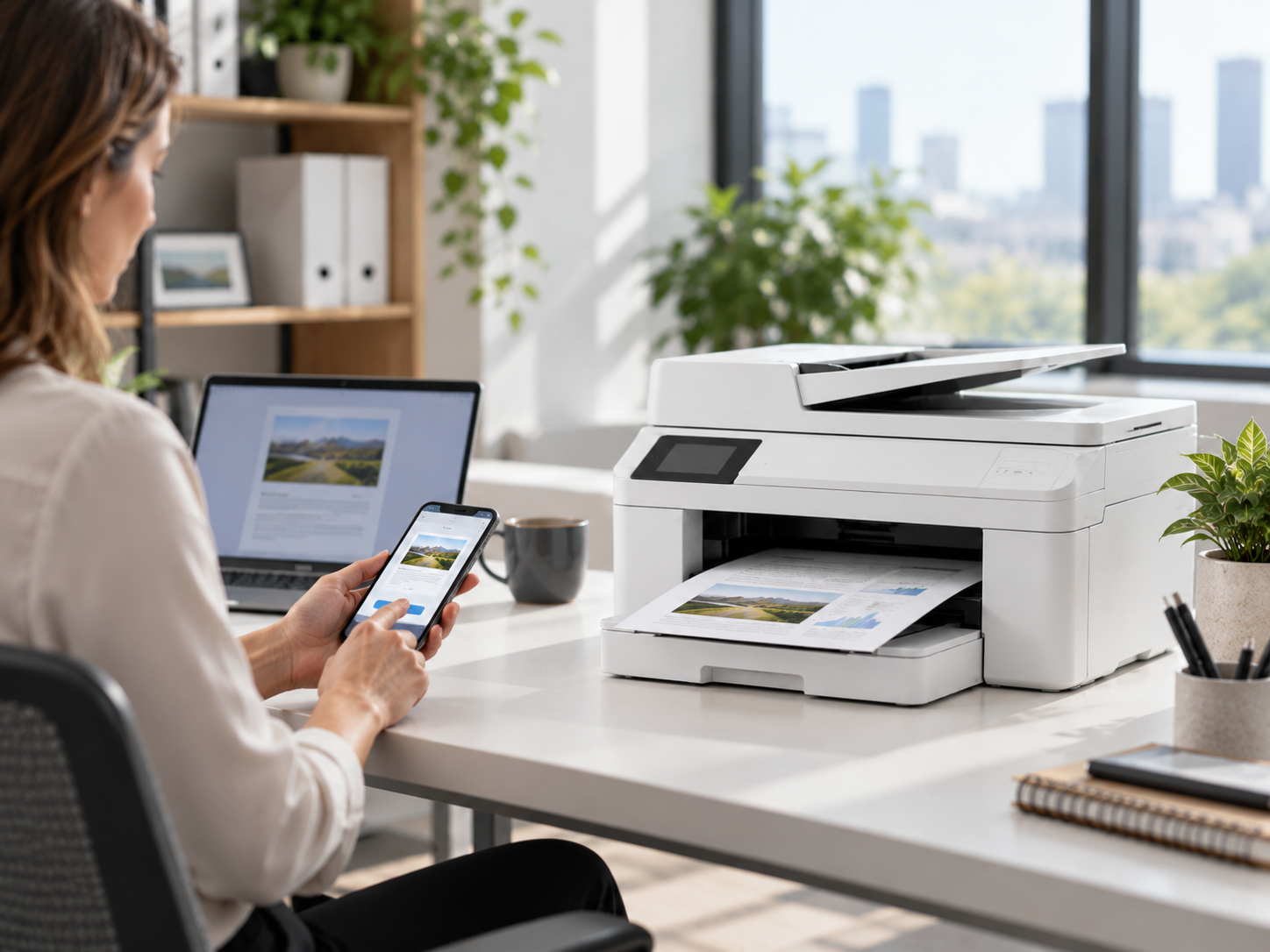
Explore wireless printing, device pairing, network settings and introductory printer setup concepts.

03 — 04

Software Basics

Learn about printer drivers, operating system compatibility, spooler services and print preferences.

04 — 04

Everyday Care

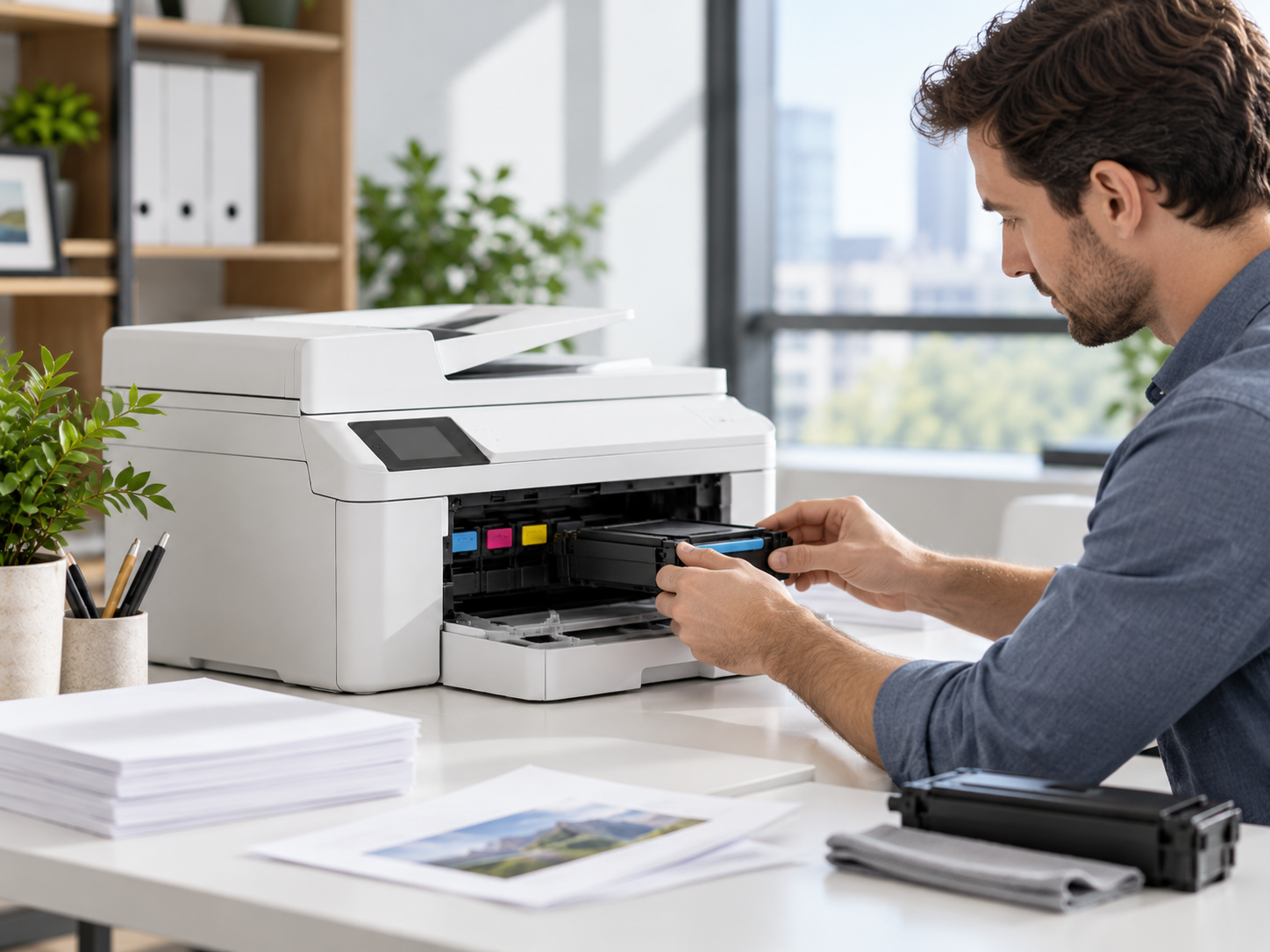
Read about paper handling, ink and toner terminology, cleaning considerations and jam prevention.

Our Editorial Approach

Information first. Nothing unnecessary.

Our focus is on educational articles that help readers become more familiar with printing technology, terminology and commonly encountered situations.

Educational Content Only

Our guides are written as learning material and general reference information.

No Downloads or Remote Sessions

We do not distribute printer drivers, remote-access software or repair tools.

Independent Learning Platform

No manufacturer affiliation, commercial technical support or device repair services.

Editorial Notice

Choice Craft is an independent educational blog. All content is provided for general information and learning purposes only. We are not affiliated with, endorsed by, or acting on behalf of any printer manufacturer or official technical support provider. We do not offer direct repair, telephone support, remote assistance or software downloads.

03 / Knowledge Directory

Explore the printer knowledge library.

Browse practical educational articles covering printer installation, connectivity, software concepts and everyday device care.

Browse by Topic
5 Educational Topics

Learning resources, not technical support.

These articles are provided for general educational reference. For device-specific software, safety instructions or warranty information, consult your printer manufacturer's official documentation.

Independent Resource
04 / Understanding the Technology

The technology behind everyday printing.

A simple introduction to the systems that help printers connect, process documents and produce printed pages.

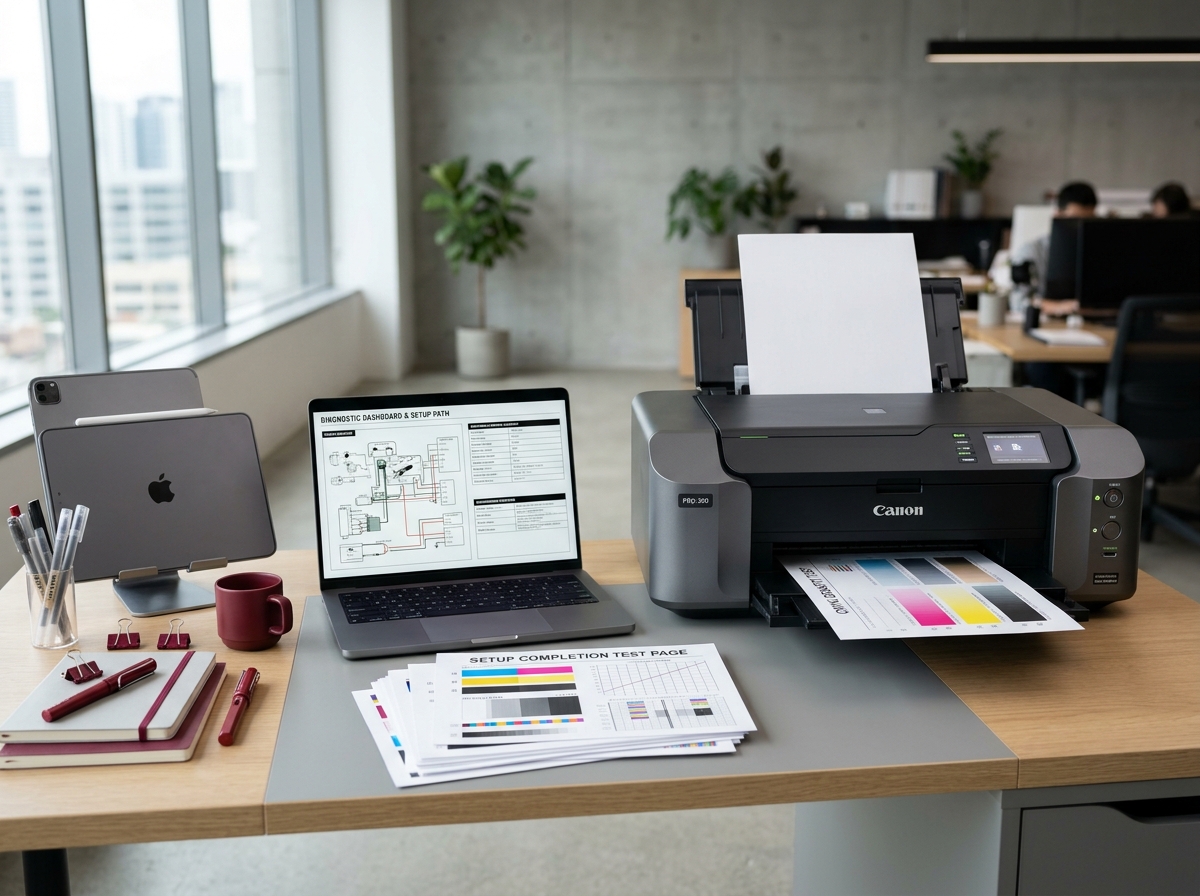
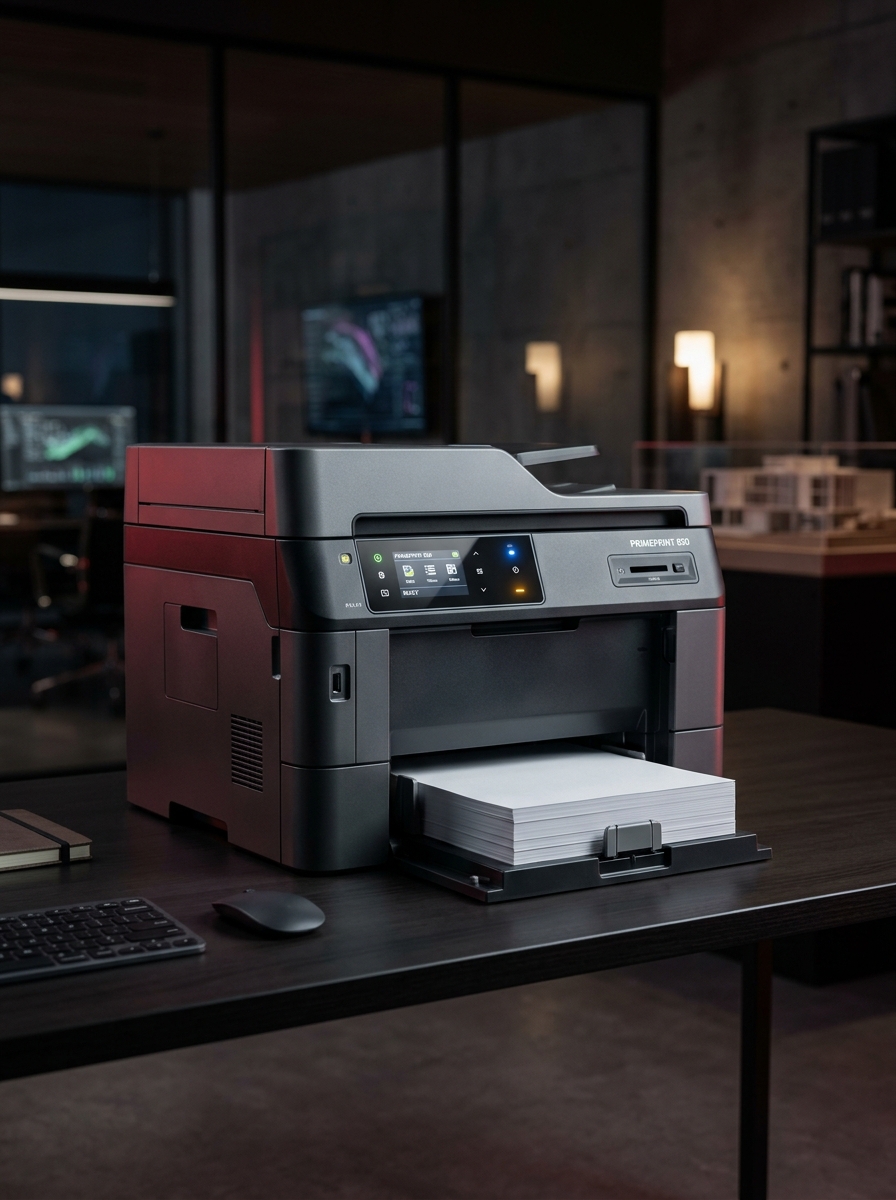
Printer technology and hardware learning environment
Printer Technology
THE BASICS / 01

Learn what happens behind the page.

Every printed page involves several connected systems. From receiving a digital document to feeding paper and applying ink or toner, each component plays a role in the printing process.

Understand printer components
Explore software communication
Learn common status terminology
Four Essential Concepts

A closer look at how printers work.

Fundamentals / 01—04
01
Networks & Connectivity

Connections & Wireless Protocols

Learn how USB, Ethernet, and Wi-Fi connections allow computers, smartphones, and printers to communicate. Explore IP addresses, router signals, and WPS pairing.

02
Software & Communication

Print Spoolers & Driver Software

Understand how printer drivers interpret documents, how printing languages work, and how operating systems organize print queues and communicate with devices.

03
Ink & Toner Technology

Inkjet & Laser Printing

Discover how inkjet printheads apply tiny ink droplets and how laser printers use toner, imaging drums, and heated fusers to create printed documents.

04
Device Status Awareness

Printer Status & Error Messages

Explore what printer indicator lights, paper sensors, carriage notifications, offline messages, and common error codes can mean.

For learning purposes only. These explanations are general educational references. Printer features, error codes and maintenance procedures can differ by model. Consult official product documentation for device-specific information.

05 / Troubleshooting Journal
Printer Learning Resources
Common Printer Questions

Understanding printer issues, made simpler.

Printer messages and unexpected printing behavior can be confusing. These concise educational notes help explain common issues, their possible causes and the systems involved.

Learning Library

A little knowledge makes printer messages easier to understand.

Browse general reference guides about printer settings, connectivity, software communication and everyday maintenance.

Explore Troubleshooting Guides
Reference Index

Explore common issues

01 — 06
01
Connectivity & Status

Printer Shows Offline

Learn what an offline printer status means and explore common causes involving network connections, printer settings, USB communication and print services.

02
Printing Software

Print Queue Stuck or Frozen

Understand why print jobs can become stalled, how documents are processed in a queue and what role the Windows Print Spooler plays.

03
Print Quality

Faded, Streaked or Blank Pages

Explore common print quality concerns involving low ink, clogged printhead nozzles, cartridge alignment and uneven toner distribution.

04
Paper Handling

Frequent Paper Feeder Jams

Learn how paper tray alignment, pickup rollers, incorrect paper types and internal paper paths can contribute to repeated jams.

05
Wireless Networking

Wi-Fi & Wireless Drops

Understand how signal strength, changes to network addresses, router settings and wireless pairing affect printer connectivity.

06
Drivers & Ports

Driver Unavailable & Port Errors

Explore driver compatibility, device detection, Windows printer ports and the common reasons a printer driver may appear unavailable.

Educational reference only

The information above introduces common printer problems for general learning purposes. Causes and appropriate actions can vary by printer model, operating system and network environment. Refer to official manufacturer documentation for product-specific instructions.

06 / Questions & Answers
Printer Learning Library
Frequently Asked Questions

Questions worth asking. Answers made simple.

Understanding your printer begins with the right information. Browse clear explanations about common printer messages, wireless connections, printing quality and everyday maintenance.

Learning Resources

Continue exploring the printer knowledge hub.

Explore helpful educational articles covering printer connectivity, software basics and device care.

Explore Knowledge Hub
Quick Reference

Find your answers

6 Questions
01 Why does my printer show "Offline" even when turned on and connected?

An offline status means the computer cannot currently communicate with the printer. Possible causes include a disconnected network, an outdated printer address, a loose USB cable, a paused printing setting or a problem with the print spooler service.

02 What causes vertical or horizontal streaks on printed documents?

Print streaks may result from clogged inkjet nozzles, cartridge alignment issues, low ink levels, toner distribution problems or worn laser printer components. The appropriate maintenance procedure depends on the printer model.

03 How can I connect a wireless printer to Wi-Fi without an LCD screen?

Some screenless printers support Wi-Fi Protected Setup (WPS), while others use a companion app, USB-assisted setup or a dedicated wireless setup mode. If both the printer and router support compatible WPS methods, consult their instructions for the correct pairing process.

04 Why are documents stuck in the print queue refusing to print or delete?

Print jobs can remain stuck because of communication interruptions, driver issues, paused printing, unavailable devices or print spooler problems. Windows includes print queue and spooler management features, but procedures can vary by operating system.

05 What is the main difference between Inkjet and Laser printers?

Inkjet printers place liquid ink droplets onto paper and are commonly used for color documents and photographs. Laser printers use electrostatic imaging and powdered toner, which is fused to paper using heat. The better option depends on printing volume, media requirements and operating costs.

06 How do I safely clear a paper jam without damaging internal rollers?

Follow the printer manufacturer’s paper jam instructions. Switch off or unplug the device when directed, allow hot components to cool, and remove accessible paper carefully in the recommended direction. Avoid sharp tools and excessive force.

These answers are for general educational purposes. Instructions and product behavior may vary depending on your printer model and operating system.